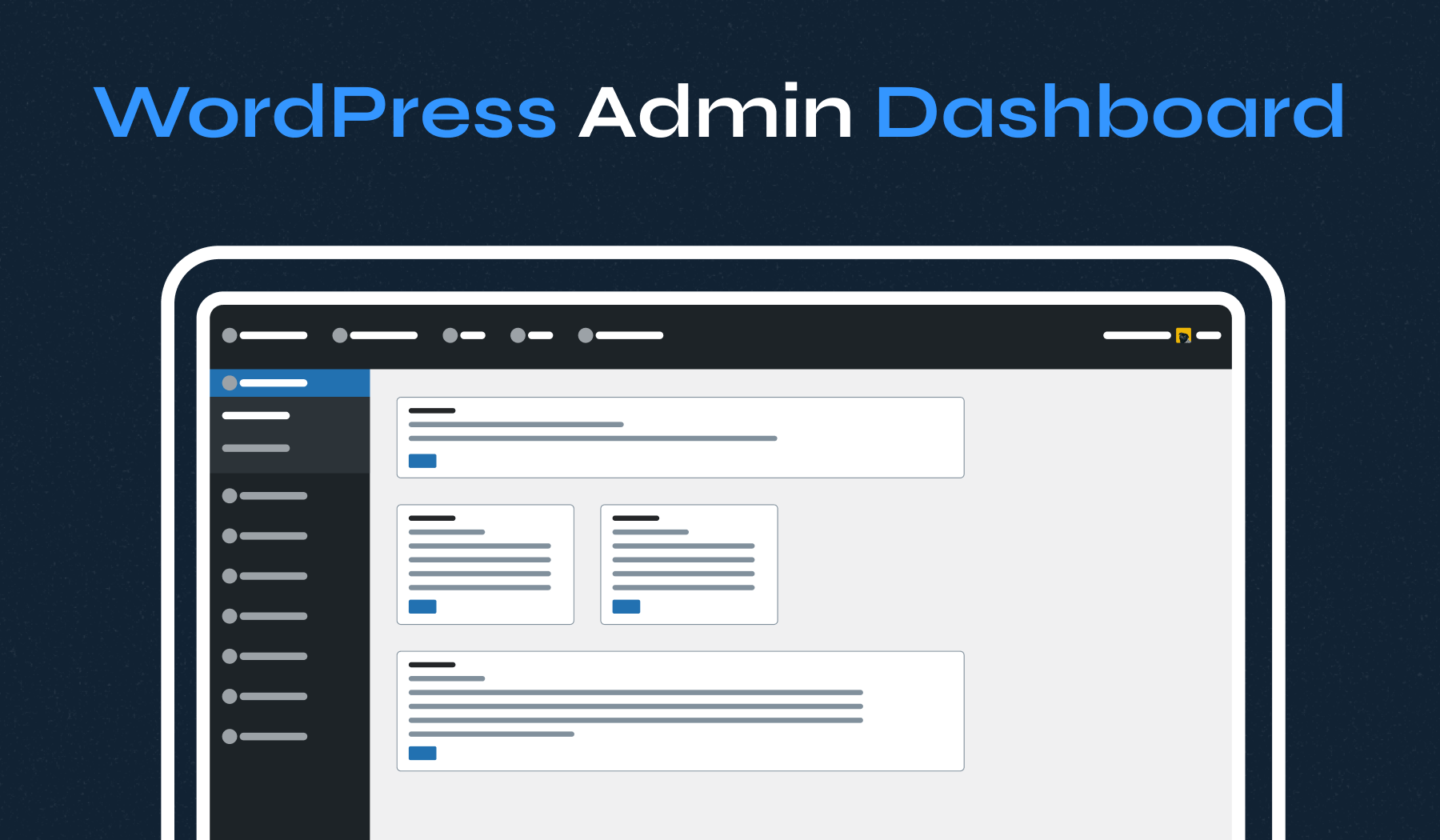
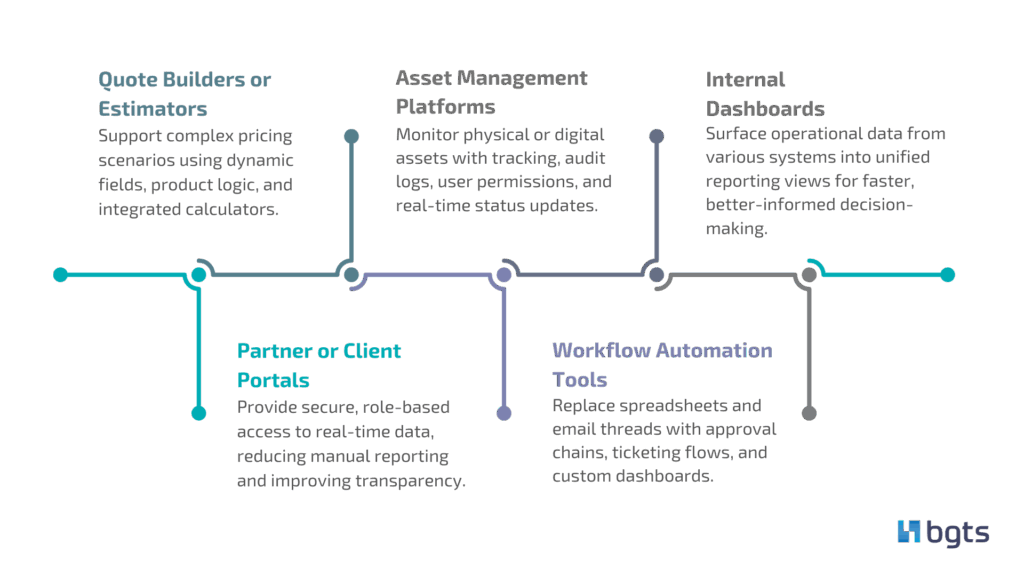
A custom WordPress admin dashboard replaces the default widget-heavy screen with a purpose-built workspace that shows each client exactly what they need: site status, pending content tasks, performance trends, invoices, and a direct line to your team. For agencies and freelance web developers, dashboard development transforms WordPress from a generic CMS into a branded, managed product—reducing support tickets, reinforcing the retainer relationship, and making the value of ongoing maintenance visible every time a client logs in.
This guide is written for professional web developers and agencies who already know their way around PHP, WordPress hooks, and the admin UI. It covers the full lifecycle of custom dashboard development: auditing client workflows, choosing a build approach, writing the code, wiring in client communication, securing the result, testing the rollout, and measuring whether it actually reduced friction. We'll also compare build approaches—including off-the-shelf options—so you can make an informed architectural decision rather than defaulting to custom code.
By the end, you'll have a working shell, a rollout plan, and a measurement framework you can apply across dozens or hundreds of client sites. Contact us to discuss your dashboard needs if you'd like help scoping a project.
Source: www.wpzoom.com
WordPress ships an admin dashboard optimized for people building websites, not for the people paying to have one maintained. That mismatch creates specific, predictable problems for agencies and web developers managing client sites.
It overloads non-technical users with decisions. At a Glance, Activity, Quick Draft, WordPress Events and News, plus whatever promotional panels plugins inject—each one invites a client to click into territory they don't need. A client who wanders into plugin settings, permalinks, or the theme customizer often creates the exact problem your next support ticket will describe.
It offers no business context. The dashboard reports posts, comments, and pages. It does not report invoices, project milestones, last backup status, uptime, or the next scheduled content review. Clients cannot see what they are paying for, so the retainer feels abstract until something breaks.
It carries zero brand identity. Every agency sends clients to the same default blue-gray screen as every other agency. That is a missed opportunity to reinforce professionalism at the moment of highest attention—login.
It scales badly. With ten clients, you can absorb ad-hoc support via email. At fifty or a hundred, every unnecessary question compounds. A client management dashboard that answers routine questions in place—"Where do I add my new team member?" "Did my backup run?"—removes work from your team permanently.
It weakens retention. When a client's only interface with your work is a monthly invoice, switching agencies costs them nothing emotionally. When their daily workspace carries your brand, your support channel, and your reporting, the relationship has friction and substance.
Source: bgts.com
The most common failure mode in dashboard development projects is choosing the tooling before understanding the work. Spend a week collecting evidence before you commit to any feature list or architecture.
Pull your last three months of support tickets. Group them by root cause. In most agency accounts, a large share fall into a handful of recurring categories: content edits, "is the site down," login and password issues, plugin or form behavior, and requests for reports. Each recurring category is a candidate for a self-service dashboard component.
Interview three clients, not thirty. Ask what they tried to do on the site in the last month and where they got stuck. Ask what they would want to see if they logged in every Monday morning. You will usually hear the same three or four answers.
Map each request to a dashboard answer. If clients frequently email to ask whether a recent page change went live, a visible "recent changes" feed solves it. If they ask for traffic numbers quarterly, an embedded analytics summary with a date-range selector solves it.
Define what stays human. Not everything should be automated. If your retainer includes strategy calls, the dashboard should surface "next strategy call" rather than pretend to replace it. Clients value knowing where the human is.
The output of this phase should be a one-page specification: components, data sources, roles, and success criteria. Get that page approved internally before development starts, because scope creep in dashboard work is almost always a symptom of an undocumented original scope.
Source: themeforest.net
With your audit in hand, you can now separate features into three tiers: must-have for launch, valuable at scale, and optional polish. The trap most web developers fall into is building the optional tier first because it's the most fun to engineer.
| Pillar | What it delivers | Example components |
|---|---|---|
| Orientation | Answers "what am I looking at?" in five seconds | Branded welcome panel, quick-start links, role-tailored shortcuts |
| Client communication | Moves conversations out of scattered email threads | Announcements, support requests, content approval queue, comment threads per page |
| Health and performance | Makes maintenance tangible | Uptime and backup status, core/plugin update log, page speed summary, security scan result |
| Reporting | Proves retainer value | Traffic snapshot, lead form submissions, top pages, monthly PDF or on-screen summary |
| Account | Handles the administrative basics | Plan tier, renewal date, invoice list, named contacts, escalation path |
These five items cover roughly 80% of what clients ask for in the first month, and each maps directly to a recurring support category you identified in your audit.
- A single branded landing screen with a clear primary action (usually "request support" or "submit content")
- A support request form that creates a trackable record rather than an email
- A status panel showing backups, updates applied, and any open security alerts
- Role-based visibility so client editors see content tools and client administrators see account tools
- Removal of every default widget that does not serve the client
These add meaningful value but require ongoing maintenance, so defer them until the volume justifies the investment.
- A content approval queue with submit/approve states
- Automated monthly summary emails generated from dashboard data
- An update log that records what changed and when, written in plain language
- White-labeling so the login screen and footer match the client's brand
- A per-client knowledge base of short walkthrough videos
A word of caution on scope: every panel you add is a panel you must maintain across every client site. A dashboard with six reliable components beats one with fifteen half-finished ones.
Your audit will tell you how much customization each client needs—which determines your build approach. There is no single correct architecture; the right choice depends on how many sites you manage, how much variation exists between clients, and whether you are building a product or a service.
| Approach | Strengths | Weaknesses | Best for |
|---|---|---|---|
| Custom plugin | Portable across sites, version-controlled, no theme lock-in | Requires real development and ongoing maintenance | Agencies managing many client sites with a standard dashboard |
| Child theme functions | Fast to prototype, no extra plugin to manage | Tied to one theme, mixes presentation and logic, breaks on theme switch | Single-site projects with a fixed theme |
| Page builder admin pages | Non-developers can iterate layouts quickly | Heavy markup, weaker access control, harder to secure and audit | Small shops with limited PHP capacity |
| Off-the-shelf client portal plugin | Immediate features, community support | Licensing costs, limited white-labeling, opinionated workflows, vendor dependency | Agencies needing something live in a week |
| Hybrid | Core components custom, commodity features from a vetted plugin | Two systems to keep compatible | Most agencies in practice |
For most readers of this guide—agencies and professional web developers—the custom plugin route is the durable answer. Build the shell, navigation, permissions, and client communication layer yourself, and integrate mature third-party services for commodity functions like uptime monitoring, backups, and analytics. You keep control of the client experience without re-implementing infrastructure.
See the WordPress Plugin Handbook for the canonical structure and coding standards a maintainable plugin should follow.
The walkthrough below builds a minimal but extensible shell. Steps 1–3 include code; Steps 4–6 are architectural decisions you'll implement according to your own stack. Each step maps to a real decision you will revisit as the dashboard grows.
Rather than fighting for space on the default dashboard, create a top-level menu entry with its own screen. This gives you full control of the HTML and avoids conflicts with other plugins that hook into
The
Keep presentation in dedicated asset files, loaded only on your page. Never enqueue admin styles globally—you will break other plugins and slow every admin page load.
The
Inside the render callback, use the standard admin markup classes (
Do not delete the default dashboard screen—your own admin workflows may still depend on it. Instead, remove widgets for client roles only, using capability checks.
The remove_meta_box() function handles core widgets; plugin-injected panels usually require their own removal hooks or a filter on
Every panel should be gated by a capability, not by a role name. Roles change; capabilities remain stable. Check with
Consider defining a custom capability such as
Most dashboard panels pull from somewhere: an analytics API, a backup service, a monitoring endpoint, or an internal database table. Three rules keep this maintainable.
1. Cache aggressively. Store remote responses in transients with a TTL matched to how often the data changes—15 minutes for uptime, 12 hours for traffic summaries.
2. Never expose credentials client-side. All API calls to third-party services happen server-side. The browser receives rendered values, not API keys.
3. Fail visibly but gracefully. If an upstream service is unreachable, show "status unavailable, last checked at 09:14" rather than a broken panel or a fatal error.
Use
White-labeling the admin is a legitimate, high-value service. Customize the login screen, replace the WordPress footer text, and set an admin color scheme that matches the client's brand. Keep the changes scoped to client roles so your own team retains a consistent working environment across sites.
If your clients operate in more than one language, wrap every string in translation functions from the first commit. Retrofitting internationalization into a mature dashboard is significantly more expensive than starting with it.
Once the shell exists, the client communication layer is what makes it a relationship tool rather than a status board. The components below are what turn a passive display into an active working relationship.
Replace scattered "heads up" emails with a persistent notice area on the dashboard. Urgent items (scheduled downtime, security patching) appear pinned at the top; routine notes (new content published, monthly report ready) appear in a chronological feed. Clients stop scrolling past your emails and start reading a channel they expect to have news.
Replace "email us" with an in-dashboard form that captures the request, the page it relates to, the requester, and a priority. Route submissions into your helpdesk or a custom post type with a status field. The immediate win is that clients can see the status of their request without emailing to ask—which eliminates an entire category of follow-up messages.
For clients who submit content for review, a submit/approve queue with visible states ("draft," "awaiting your approval," "scheduled") removes ambiguity and prevents the classic "did you get my changes?" thread. Keep the interface to a small number of states; approval systems collapse under too many statuses.
Every time you update plugins or core, log what changed in one sentence a non-technical reader understands: "Updated the contact form plugin to fix an issue where submissions occasionally failed on mobile." This single habit does more for perceived professionalism than almost any other dashboard feature, because it makes invisible work visible.
Always show a named contact, a response-time expectation, and an emergency channel. Clients tolerate problems far better when they know exactly who to reach and how fast to expect an answer.
The dashboard you build becomes part of your clients' attack surface. Treat it accordingly.
Input handling is the first line of defense. Validate and sanitize every input and escape every output using the WordPress sanitizing and escaping APIs consistently rather than hand-rolled filtering. Pair this with nonces on every form and AJAX action—the nonce documentation explains the correct pattern, and you should reuse it exactly rather than improvising.
Authorization must happen server-side. Front-end hiding is cosmetic; the real check belongs in the handler. Use
Log sensitive actions. Who changed a client's plan, who downloaded an invoice, who closed a ticket. Audit logs also protect you in disputes.
Beyond those fundamentals, keep these practices in place:
- Avoid abandoned dependencies. Before integrating a portal plugin or SDK, check its last update date and open issue count. Vendor dependency is the most common cause of dashboard rot.
- Test updates on staging first. A dashboard that breaks after a routine plugin update damages trust more than a plain admin ever could.
- Plan for decommissioning. If a client leaves, you need a clean way to remove your plugin and hand over a standard WordPress install. Build that exit path on day one.
Performance follows the same discipline: scoped asset loading, cached remote calls, and no expensive queries on page load. An admin screen that takes four seconds to render feels broken, and clients will avoid it.
A dashboard change is a change to your clients' daily working environment. Roll it out the way you would roll out a product release.
1. Test on staging with a real client's content, not sample data. Real page counts, real user lists, real plugin combinations.
2. Run an accessibility check. Keyboard navigation, color contrast, and screen reader labels are baseline expectations; the WordPress admin has established patterns worth matching.
3. Pilot with two or three friendly clients. Watch them use it for fifteen minutes without helping. Where they hesitate is where your labels are wrong.
4. Onboard deliberately. A five-minute recorded walkthrough and a one-page PDF reduce confusion more than any tooltip.
5. Announce, don't surprise. Tell clients what is changing, why, and what they can now do that they could not before.
Define metrics before launch and review them quarterly.
| Metric | What it tells you |
|---|---|
| Support ticket volume by category | Whether self-service components are absorbing routine questions |
| Time to first response and resolution | Whether the request workflow improved triage |
| Client logins per month | Whether the dashboard is becoming a habit or a ghost town |
| Percentage of requests submitted in-dashboard | Whether adoption is real or clients still default to email |
| Retention and upsell rate | Whether perceived value translated into commercial outcomes |
| Qualitative feedback at 60 days | Whether clients can articulate what the dashboard is for |
If logins stay flat and requests still arrive by email, you have a client communication problem, not a feature problem. Fix the onboarding before building more panels.
Most pitfalls in dashboard projects trace back to a handful of preventable mistakes. Building features before auditing needs is the most common—the most impressive panel is worthless if it answers a question nobody asked. Hiding interface elements rather than authorizing actions server-side is the most dangerous, because client-side conditionals are not security. Loading assets site-wide instead of scoping them to your page hook is the most common performance regression.
Beyond those three, watch for:
- Over-white-labeling. Removing all WordPress branding can make documentation and support harder for clients who search for help online.
- Ignoring mobile. Clients check status from phones. Test the dashboard at narrow widths.
- Treating launch as the finish line. Dashboards decay. Assign an owner and a review cadence, or the panels will slowly break.
- No exit path. Always be able to cleanly remove your plugin and return the site to a standard install.
Can I build a client dashboard without writing a plugin?
Yes. A child theme's
Should the custom dashboard replace the default WordPress dashboard entirely?
Usually not. Redirect client roles to your custom screen on login, but leave the standard dashboard available to agency staff who rely on core widgets. A filter on
How do I keep third-party API keys out of the browser?
Perform every external request server-side, store credentials in
What is the minimum viable version I can ship in two weeks?
A branded landing screen, a support request form that creates a record, a status panel showing backups and recent updates, and role-based widget removal. That combination delivers most of the perceived value of a full dashboard without the integration work.
How do I stop the dashboard from breaking after WordPress updates?
Pin your integrations to stable APIs, test on staging, avoid abandoned dependencies, and keep the plugin's own code isolated in small, independently testable functions. Maintain a changelog and check it during every maintenance cycle.
Does this work for WooCommerce or multisite clients?
Both, with planning. Multisite requires network-level capability checks and a decision about whether the dashboard lives per-site or at the network level. WooCommerce client dashboards usually need order and subscription data, which you should pull through the official APIs and cache rather than reading tables directly.
A custom WordPress admin dashboard is less a design project than an operating decision: you are choosing to answer your clients' recurring questions in place, on a screen that carries your brand, instead of in email threads that consume your team's hours. The agencies and web developers who get this right start with a workflow audit, ship a small number of reliable components, wire client communication directly into the interface, and treat permissions and performance as first-class requirements rather than afterthoughts. The result is a client management experience that feels managed and deliberate—and a retainer that is visibly earning its keep every time someone logs in.
Ready to build a dashboard that works as hard as you do? Contact us to discuss your dashboard needs and let's scope a solution tailored to your agency.
---
Ready to level up your client experience? Subscribe Now to get more expert guides on WordPress development, agency operations, and client management delivered straight to your inbox.wordpress admin dashboard, client management, custom plugin, dashboard development, professional web developers
This guide is written for professional web developers and agencies who already know their way around PHP, WordPress hooks, and the admin UI. It covers the full lifecycle of custom dashboard development: auditing client workflows, choosing a build approach, writing the code, wiring in client communication, securing the result, testing the rollout, and measuring whether it actually reduced friction. We'll also compare build approaches—including off-the-shelf options—so you can make an informed architectural decision rather than defaulting to custom code.
By the end, you'll have a working shell, a rollout plan, and a measurement framework you can apply across dozens or hundreds of client sites. Contact us to discuss your dashboard needs if you'd like help scoping a project.
Source: www.wpzoom.com
Why the Default WordPress Dashboard Falls Short for Client Management
WordPress ships an admin dashboard optimized for people building websites, not for the people paying to have one maintained. That mismatch creates specific, predictable problems for agencies and web developers managing client sites.
It overloads non-technical users with decisions. At a Glance, Activity, Quick Draft, WordPress Events and News, plus whatever promotional panels plugins inject—each one invites a client to click into territory they don't need. A client who wanders into plugin settings, permalinks, or the theme customizer often creates the exact problem your next support ticket will describe.
It offers no business context. The dashboard reports posts, comments, and pages. It does not report invoices, project milestones, last backup status, uptime, or the next scheduled content review. Clients cannot see what they are paying for, so the retainer feels abstract until something breaks.
It carries zero brand identity. Every agency sends clients to the same default blue-gray screen as every other agency. That is a missed opportunity to reinforce professionalism at the moment of highest attention—login.
It scales badly. With ten clients, you can absorb ad-hoc support via email. At fifty or a hundred, every unnecessary question compounds. A client management dashboard that answers routine questions in place—"Where do I add my new team member?" "Did my backup run?"—removes work from your team permanently.
It weakens retention. When a client's only interface with your work is a monthly invoice, switching agencies costs them nothing emotionally. When their daily workspace carries your brand, your support channel, and your reporting, the relationship has friction and substance.
Source: bgts.com
Start With a Workflow Audit, Not a Plugin
The most common failure mode in dashboard development projects is choosing the tooling before understanding the work. Spend a week collecting evidence before you commit to any feature list or architecture.
Pull your last three months of support tickets. Group them by root cause. In most agency accounts, a large share fall into a handful of recurring categories: content edits, "is the site down," login and password issues, plugin or form behavior, and requests for reports. Each recurring category is a candidate for a self-service dashboard component.
Interview three clients, not thirty. Ask what they tried to do on the site in the last month and where they got stuck. Ask what they would want to see if they logged in every Monday morning. You will usually hear the same three or four answers.
Map each request to a dashboard answer. If clients frequently email to ask whether a recent page change went live, a visible "recent changes" feed solves it. If they ask for traffic numbers quarterly, an embedded analytics summary with a date-range selector solves it.
Define what stays human. Not everything should be automated. If your retainer includes strategy calls, the dashboard should surface "next strategy call" rather than pretend to replace it. Clients value knowing where the human is.
The output of this phase should be a one-page specification: components, data sources, roles, and success criteria. Get that page approved internally before development starts, because scope creep in dashboard work is almost always a symptom of an undocumented original scope.
Source: themeforest.net
What Should a Client Management Dashboard Actually Include?
With your audit in hand, you can now separate features into three tiers: must-have for launch, valuable at scale, and optional polish. The trap most web developers fall into is building the optional tier first because it's the most fun to engineer.
The five functional pillars
| Pillar | What it delivers | Example components |
|---|---|---|
| Orientation | Answers "what am I looking at?" in five seconds | Branded welcome panel, quick-start links, role-tailored shortcuts |
| Client communication | Moves conversations out of scattered email threads | Announcements, support requests, content approval queue, comment threads per page |
| Health and performance | Makes maintenance tangible | Uptime and backup status, core/plugin update log, page speed summary, security scan result |
| Reporting | Proves retainer value | Traffic snapshot, lead form submissions, top pages, monthly PDF or on-screen summary |
| Account | Handles the administrative basics | Plan tier, renewal date, invoice list, named contacts, escalation path |
Must-have features for a first release
These five items cover roughly 80% of what clients ask for in the first month, and each maps directly to a recurring support category you identified in your audit.
- A single branded landing screen with a clear primary action (usually "request support" or "submit content")
- A support request form that creates a trackable record rather than an email
- A status panel showing backups, updates applied, and any open security alerts
- Role-based visibility so client editors see content tools and client administrators see account tools
- Removal of every default widget that does not serve the client
Features worth building once you have five or more clients
These add meaningful value but require ongoing maintenance, so defer them until the volume justifies the investment.
- A content approval queue with submit/approve states
- Automated monthly summary emails generated from dashboard data
- An update log that records what changed and when, written in plain language
- White-labeling so the login screen and footer match the client's brand
- A per-client knowledge base of short walkthrough videos
A word of caution on scope: every panel you add is a panel you must maintain across every client site. A dashboard with six reliable components beats one with fifteen half-finished ones.
Choosing the Right Build Approach
Your audit will tell you how much customization each client needs—which determines your build approach. There is no single correct architecture; the right choice depends on how many sites you manage, how much variation exists between clients, and whether you are building a product or a service.
| Approach | Strengths | Weaknesses | Best for |
|---|---|---|---|
| Custom plugin | Portable across sites, version-controlled, no theme lock-in | Requires real development and ongoing maintenance | Agencies managing many client sites with a standard dashboard |
| Child theme functions | Fast to prototype, no extra plugin to manage | Tied to one theme, mixes presentation and logic, breaks on theme switch | Single-site projects with a fixed theme |
| Page builder admin pages | Non-developers can iterate layouts quickly | Heavy markup, weaker access control, harder to secure and audit | Small shops with limited PHP capacity |
| Off-the-shelf client portal plugin | Immediate features, community support | Licensing costs, limited white-labeling, opinionated workflows, vendor dependency | Agencies needing something live in a week |
| Hybrid | Core components custom, commodity features from a vetted plugin | Two systems to keep compatible | Most agencies in practice |
For most readers of this guide—agencies and professional web developers—the custom plugin route is the durable answer. Build the shell, navigation, permissions, and client communication layer yourself, and integrate mature third-party services for commodity functions like uptime monitoring, backups, and analytics. You keep control of the client experience without re-implementing infrastructure.
See the WordPress Plugin Handbook for the canonical structure and coding standards a maintainable plugin should follow.
Building the Dashboard: A Step-by-Step Implementation
The walkthrough below builds a minimal but extensible shell. Steps 1–3 include code; Steps 4–6 are architectural decisions you'll implement according to your own stack. Each step maps to a real decision you will revisit as the dashboard grows.
Step 1: Register a dedicated admin page
Rather than fighting for space on the default dashboard, create a top-level menu entry with its own screen. This gives you full control of the HTML and avoids conflicts with other plugins that hook into
index.php.add_action( 'admin_menu', 'agency_register_client_dashboard' );
function agency_register_client_dashboard() {
add_menu_page(
'Client Dashboard',
'Dashboard',
'read',
'agency-dashboard',
'agency_render_dashboard',
'dashicons-screenoptions',
2
);
}The
add_menu_page() reference in the WordPress developer documentation covers the capability and position arguments in detail. Position 2 places the item directly beneath the default Dashboard entry, which keeps it prominent without displacing core navigation.Step 2: Build the screen with your own CSS and JS
Keep presentation in dedicated asset files, loaded only on your page. Never enqueue admin styles globally—you will break other plugins and slow every admin page load.
add_action( 'admin_enqueue_scripts', 'agency_dashboard_assets' );

function agency_dashboard_assets( $hook ) {
    if ( 'toplevel_page_agency-dashboard' !== $hook ) {
        return;
    }
    wp_enqueue_style( 'agency-dashboard', plugins_url( 'assets/dashboard.css', __FILE__ ), array(), '1.0.0' );
    wp_enqueue_script( 'agency-dashboard', plugins_url( 'assets/dashboard.js', __FILE__ ), array( 'wp-api-fetch' ), '1.0.0', true );
}
The
$hook guard is the single most important line in that snippet. It prevents the dashboard from becoming a site-wide performance tax.Inside the render callback, use the standard admin markup classes (
wrap, card, notice) so the dashboard inherits WordPress's accessibility behavior and visual conventions. Clients already recognize those patterns, even if they cannot name them.Step 3: Curate the default dashboard
Do not delete the default dashboard screen—your own admin workflows may still depend on it. Instead, remove widgets for client roles only, using capability checks.
add_action( 'wp_dashboard_setup', 'agency_trim_dashboard_widgets' );

function agency_trim_dashboard_widgets() {
    if ( current_user_can( 'manage_options' ) ) {
        return; // Leave the full dashboard for agency staff.
    }
    remove_meta_box( 'dashboard_activity', 'dashboard', 'normal' );
    remove_meta_box( 'dashboard_primary', 'dashboard', 'side' );
    remove_meta_box( 'dashboard_quick_press', 'dashboard', 'side' );
}
The remove_meta_box() function handles core widgets; plugin-injected panels usually require their own removal hooks or a filter on
get_user_option_metaboxhidden_dashboard.Step 4: Enforce role-based visibility
Every panel should be gated by a capability, not by a role name. Roles change; capabilities remain stable. Check with
current_user_can() before rendering markup and again before processing any action, because hiding a button is not access control.Consider defining a custom capability such as
view_client_billing and granting it only to the client's administrative contact. This lets you sell tiered dashboards later without rewriting conditionals.Step 5: Connect data sources deliberately
Most dashboard panels pull from somewhere: an analytics API, a backup service, a monitoring endpoint, or an internal database table. Three rules keep this maintainable.
1. Cache aggressively. Store remote responses in transients with a TTL matched to how often the data changes—15 minutes for uptime, 12 hours for traffic summaries.
2. Never expose credentials client-side. All API calls to third-party services happen server-side. The browser receives rendered values, not API keys.
3. Fail visibly but gracefully. If an upstream service is unreachable, show "status unavailable, last checked at 09:14" rather than a broken panel or a fatal error.
Use
WP-Cron or a server cron job to refresh data on a schedule so the dashboard renders fast on first load.Step 6: Brand and localize the experience
White-labeling the admin is a legitimate, high-value service. Customize the login screen, replace the WordPress footer text, and set an admin color scheme that matches the client's brand. Keep the changes scoped to client roles so your own team retains a consistent working environment across sites.
If your clients operate in more than one language, wrap every string in translation functions from the first commit. Retrofitting internationalization into a mature dashboard is significantly more expensive than starting with it.
Making Client Communication Part of the Dashboard
Once the shell exists, the client communication layer is what makes it a relationship tool rather than a status board. The components below are what turn a passive display into an active working relationship.
A single, visible announcement channel
Replace scattered "heads up" emails with a persistent notice area on the dashboard. Urgent items (scheduled downtime, security patching) appear pinned at the top; routine notes (new content published, monthly report ready) appear in a chronological feed. Clients stop scrolling past your emails and start reading a channel they expect to have news.
Support requests that create records
Replace "email us" with an in-dashboard form that captures the request, the page it relates to, the requester, and a priority. Route submissions into your helpdesk or a custom post type with a status field. The immediate win is that clients can see the status of their request without emailing to ask—which eliminates an entire category of follow-up messages.
Content approval workflows
For clients who submit content for review, a submit/approve queue with visible states ("draft," "awaiting your approval," "scheduled") removes ambiguity and prevents the classic "did you get my changes?" thread. Keep the interface to a small number of states; approval systems collapse under too many statuses.
Plain-language release notes
Every time you update plugins or core, log what changed in one sentence a non-technical reader understands: "Updated the contact form plugin to fix an issue where submissions occasionally failed on mobile." This single habit does more for perceived professionalism than almost any other dashboard feature, because it makes invisible work visible.
An escalation path
Always show a named contact, a response-time expectation, and an emergency channel. Clients tolerate problems far better when they know exactly who to reach and how fast to expect an answer.
Security, Performance, and Maintenance Considerations
The dashboard you build becomes part of your clients' attack surface. Treat it accordingly.
Input handling is the first line of defense. Validate and sanitize every input and escape every output using the WordPress sanitizing and escaping APIs consistently rather than hand-rolled filtering. Pair this with nonces on every form and AJAX action—the nonce documentation explains the correct pattern, and you should reuse it exactly rather than improvising.
Authorization must happen server-side. Front-end hiding is cosmetic; the real check belongs in the handler. Use
current_user_can() before processing any action, not just before rendering the button that triggers it.Log sensitive actions. Who changed a client's plan, who downloaded an invoice, who closed a ticket. Audit logs also protect you in disputes.
Beyond those fundamentals, keep these practices in place:
- Avoid abandoned dependencies. Before integrating a portal plugin or SDK, check its last update date and open issue count. Vendor dependency is the most common cause of dashboard rot.
- Test updates on staging first. A dashboard that breaks after a routine plugin update damages trust more than a plain admin ever could.
- Plan for decommissioning. If a client leaves, you need a clean way to remove your plugin and hand over a standard WordPress install. Build that exit path on day one.
Performance follows the same discipline: scoped asset loading, cached remote calls, and no expensive queries on page load. An admin screen that takes four seconds to render feels broken, and clients will avoid it.
Testing and Rolling Out Without Breaking Client Trust
A dashboard change is a change to your clients' daily working environment. Roll it out the way you would roll out a product release.
1. Test on staging with a real client's content, not sample data. Real page counts, real user lists, real plugin combinations.
2. Run an accessibility check. Keyboard navigation, color contrast, and screen reader labels are baseline expectations; the WordPress admin has established patterns worth matching.
3. Pilot with two or three friendly clients. Watch them use it for fifteen minutes without helping. Where they hesitate is where your labels are wrong.
4. Onboard deliberately. A five-minute recorded walkthrough and a one-page PDF reduce confusion more than any tooltip.
5. Announce, don't surprise. Tell clients what is changing, why, and what they can now do that they could not before.
How Do You Measure Whether the Dashboard Is Working?
Define metrics before launch and review them quarterly.
| Metric | What it tells you |
|---|---|
| Support ticket volume by category | Whether self-service components are absorbing routine questions |
| Time to first response and resolution | Whether the request workflow improved triage |
| Client logins per month | Whether the dashboard is becoming a habit or a ghost town |
| Percentage of requests submitted in-dashboard | Whether adoption is real or clients still default to email |
| Retention and upsell rate | Whether perceived value translated into commercial outcomes |
| Qualitative feedback at 60 days | Whether clients can articulate what the dashboard is for |
If logins stay flat and requests still arrive by email, you have a client communication problem, not a feature problem. Fix the onboarding before building more panels.
Common Pitfalls to Avoid
Most pitfalls in dashboard projects trace back to a handful of preventable mistakes. Building features before auditing needs is the most common—the most impressive panel is worthless if it answers a question nobody asked. Hiding interface elements rather than authorizing actions server-side is the most dangerous, because client-side conditionals are not security. Loading assets site-wide instead of scoping them to your page hook is the most common performance regression.
Beyond those three, watch for:
- Over-white-labeling. Removing all WordPress branding can make documentation and support harder for clients who search for help online.
- Ignoring mobile. Clients check status from phones. Test the dashboard at narrow widths.
- Treating launch as the finish line. Dashboards decay. Assign an owner and a review cadence, or the panels will slowly break.
- No exit path. Always be able to cleanly remove your plugin and return the site to a standard install.
Frequently Asked Questions
Can I build a client dashboard without writing a plugin?
Yes. A child theme's
functions.php can register admin pages and enqueue assets, and page builder admin pages work for simple layouts. However, theme-based code breaks if the theme changes, and page builder output is harder to secure and audit. For anything you plan to reuse across clients, a plugin is the sounder choice for professional web developers.Should the custom dashboard replace the default WordPress dashboard entirely?
Usually not. Redirect client roles to your custom screen on login, but leave the standard dashboard available to agency staff who rely on core widgets. A filter on
login_redirect plus a capability check handles this cleanly.How do I keep third-party API keys out of the browser?
Perform every external request server-side, store credentials in
wp-config.php constants or environment variables, and cache responses in transients. The browser should only ever receive rendered values. Never place a key in a JavaScript file or an HTML data attribute.What is the minimum viable version I can ship in two weeks?
A branded landing screen, a support request form that creates a record, a status panel showing backups and recent updates, and role-based widget removal. That combination delivers most of the perceived value of a full dashboard without the integration work.
How do I stop the dashboard from breaking after WordPress updates?
Pin your integrations to stable APIs, test on staging, avoid abandoned dependencies, and keep the plugin's own code isolated in small, independently testable functions. Maintain a changelog and check it during every maintenance cycle.
Does this work for WooCommerce or multisite clients?
Both, with planning. Multisite requires network-level capability checks and a decision about whether the dashboard lives per-site or at the network level. WooCommerce client dashboards usually need order and subscription data, which you should pull through the official APIs and cache rather than reading tables directly.
Conclusion
A custom WordPress admin dashboard is less a design project than an operating decision: you are choosing to answer your clients' recurring questions in place, on a screen that carries your brand, instead of in email threads that consume your team's hours. The agencies and web developers who get this right start with a workflow audit, ship a small number of reliable components, wire client communication directly into the interface, and treat permissions and performance as first-class requirements rather than afterthoughts. The result is a client management experience that feels managed and deliberate—and a retainer that is visibly earning its keep every time someone logs in.
Ready to build a dashboard that works as hard as you do? Contact us to discuss your dashboard needs and let's scope a solution tailored to your agency.
---
Ready to level up your client experience? Subscribe Now to get more expert guides on WordPress development, agency operations, and client management delivered straight to your inbox.wordpress admin dashboard, client management, custom plugin, dashboard development, professional web developers