Keeping your WordPress server's PHP version current is one of the most important security and performance decisions you can make — and neglecting it puts your business, your customers, and your revenue at direct risk. This guide shows you exactly how to update PHP in WordPress: from checking your current version and testing PHP version compatibility in WordPress, to performing a WordPress PHP version upgrade with zero downtime. By the end, you'll know how to upgrade PHP in WordPress safely — even if you've never touched a server setting before.

Source: www.fortinet.com
Why PHP Version Compatibility in WordPress Is a Business-Critical Issue
Most CEOs and founders think of PHP as a developer concern. In reality, it's a business risk sitting at the foundation of your entire online operation.
PHP is the server-side language that powers WordPress. Every page load, every checkout transaction, and every contact form submission runs through it. When your WordPress server's PHP version is outdated, you're not just running slower — you're running code.
Source: www.figma.com

The Real Cost of Running an Outdated PHP Version
In early 2026, two critical vulnerabilities were disclosed that sent shockwaves through the WordPress and PHP hosting communities:
- CVE-6-109618 — A severe remote code vulnerability affecting older PHP versions, allowing unauthenticated attackers to run arbitrary commands on a vulnerable server. Full technical details are published in the National Vulnerability Database{:target="_blank"}.
- CVE-2026-109619 — A critical vulnerability in the PHP core that enables privilege escalation and data exfiltration, specifically exploitable on WordPress installations running unpatched PHP. According to the National Vulnerability Database entry for CVE-2026-109619{target="_blank"}, this vulnerability carries a maximum CVSS severity score of 9.8, meaning any system exposed to the internet running the affected PHP version should be treated as compromised until patched.
For WooCommerce store owners, the implications are devastating. A compromised server can mean:
- Stolen customer payment data, to regulatory penalties under GDPR or PCI-DSS.
- Complete site defacement, causing immediate brand damage.
- Catastrophic loss of customer trust, resulting in long-term revenue impact.
None of those consequences are recoverable quickly or cheaply.
The single most effective mitigation for both CVE-2026-109618 and CVE-2026-109619 is upgrading to a current, supported PHP version. guide shows you exactly how to do that safely.
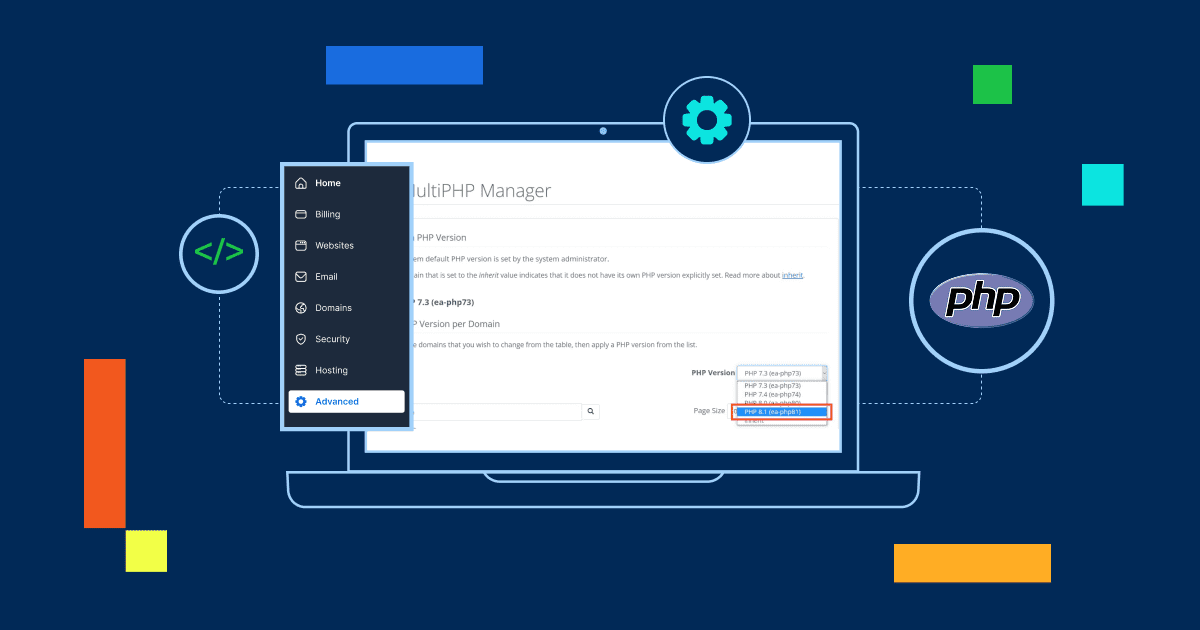
Source: www.bluehost.com
What PHP Version Should Your WordPress Server Be Running?
Now that you understand the stakes, here's how to determine the right target version for your WordPress PHP version upgrade. The official PHP project{:target="_blank"} maintains active support and security-only support for specific release branches. Versions past end of life receive no patches — meaning new vulnerabilities like CVE-2026-109619 will never be fixed on those branches.
PHP Version Compatibility With WordPress: Recommendations
The table below breaks down support status and WordPress compatibility. "Security Only" means the branch receives fixes for vulnerabilities but no active feature development. " of Life" means no security patches are issued at all.
| PHP Version | Support Status | WordPress Compatible | Recommended? |
|---|---|---|---|
| PHP 7.4 and below | End of Life | Technically runs, unsupported | No – security risk |
| PHP 8.0 | End of Life | Yes | No – security risk |
| 8.1 | Security Only | Yes | Minimum acceptable |
| PHP 8.2 | Active Support | Yes | Yes – recommended |
| PHP 8.3 | Active Support | Yes | Yes – current stable |
| PHP 8.4 Active Support | Yes | Yes – if plugins support it |
Bottom line: For most business sites, PHP 8.2 or 8.3 is the sweet spot for security and performance. Only upgrade to PHP 8.4 if you've confirmed that all your plugins and themes are fully compatible.
Step 1: Audit Your Current Setup Before You Change PHP Version in WordPress
Before You Begin: Safety First
Switching PHP versions can cause fatal errors or a white screen of death if your plugins are incompatible. Never perform this upgrade on a live production site without a recent backup and a staging environment. Most managed WordPress hosts offer one-click staging and PHP version rollback use them.
Before you change anything, you need to know what you're working with.
- Check your current PHP version. Go to Tools → Site Health → Info in your WordPress dashboard and expand the Server section. Look for the PHP version number.
- Verify your host's available versions. Log in to your hosting control panel (cPanel, Kinsta, WP Engine, etc.) and the PHP version selector. Note which PHP versions are available to you.
- Create a full backup. Use a backup plugin (like UpdraftPlus) or your host's native backup tool. Download a copy to your local machine for safekeeping.
Step 2: Test PHP Version Compatibility Safely
This is the most critical step for preventing downtime during your WordPress PHP version upgrade.
- Set up a staging environment. Most quality hosts provide this. If yours doesn't, you can use a plugin like WP Staging to create a clone of your site.
- Switch the staging site to your target version (e.g., 8.3) using your hosting control panel.
- Run a full site test. Navigate through every page, test your checkout process (if WooCommerce), submit forms, and check your error logs. Look specifically for deprecation warnings or fatal errors.
- Use a compatibility checker. If you're unsure, install the ** Compatibility Checker** plugin on your staging site to scan your plugins and themes for issues.
Step 3: Perform the PHP Version Upgrade
Once your staging site validates successfully, you're ready for the live switch.
- Double-check your backup. Ensure your production backup is complete and recent.
- Switch the PHP version in your hosting control panel. This is usually a dropdown menu in cPanel or a settings page in managed hosting dashboards.
- Clear your cache. Clear any server-side caching (like Varnish or Redis) your caching plugin (like WP Rocket).
- Monitor immediately. Visit your homepage, a few inner pages, and your login page. If you see a white screen or fatal error, immediately switch back to the previous PHP version and restore your backup.
Step 4: Verify and Monitor After the
After the switch, stay vigilant for 24–48 hours.
- Check for PHP errors. Review your server's error log for any new warnings.
- Test all functionality. Run through your checkout, contact forms, and any custom features again on the live site.
- Update your plugins. Ensure all plugins are on their latest versions, as many release compatibility fixes for new PHP versions.
Troubleshooting Common PHP Upgrade Issues
- White screen after switching? This is usually a plugin conflict. Switch back to the old PHP version, then deactivate plugins one by one on staging to identify the culprit.
- Host doesn't offer the latest PHP version? It may be time to consider a new provider that prioritizes security and performance.
- Not comfortable doing this yourself? Ask your host. Most managed WordPress hosts (like WP Engine, Kinsta, or Liquid Web) offer one-click PHP switching and will assist with rollback if something breaks.
Conclusion
Updating your WordPress PHP version is not just a technical maintenance task — it's a critical business decision that protects your revenue, your customers, and your reputation. Whether you're learning how to update PHP in WordPress for the first time or planning a routine WordPress PHP version upgrade, the process above lets you upgrade PHP in WordPress safely and confidently. Secure your WordPress by treating this upgrade as a priority, not an afterthought.
Your PHP Upgrade Checklist:
[ ] Create a full backup
- Set up and test on a staging environment
- Check plugin/theme compatibility
- Switch PHP version on live site
- Clear caches and verify functionality
- Monitor error logs for 48 hours
A 30-minute upgrade today prevents a catastrophic breach tomorrow. If you're not comfortable with staging environments or server settings, contact your hosting provider they can often perform the PHP version switch for you safely. Don't wait for an outdated WordPress server PHP version to become a liability. Secure your WordPress today.
0 comments:
Post a Comment